Microsoft Document Imaging Format (or MDI) is a proprietary image format developed by Microsoft for storing raster images of scanned documents. The files saved in MDI format can only be opened using Microsoft Software such as Microsoft Office Document Imaging (MODI) or Microsoft Office OneNote 2007.
But we are not concerned about the technicalities of the MDI format, let’s get to the solution.
Say you’ve downloaded a file which has a .MDI extension, if you double-click on this file, windows would ask you to choose the program to open the file. Microsoft Office Document Imaging is not installed by default during the Office 2007 setup. We’ll have to install it first.
- Start->Control Panel->Add or Remove Programs
- Select Microsoft Office 2007 and click on Change

- Select Add or Remove Features, click on Continue
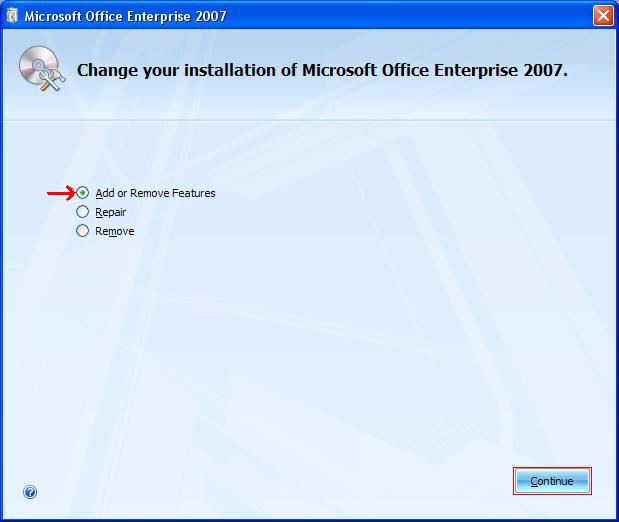
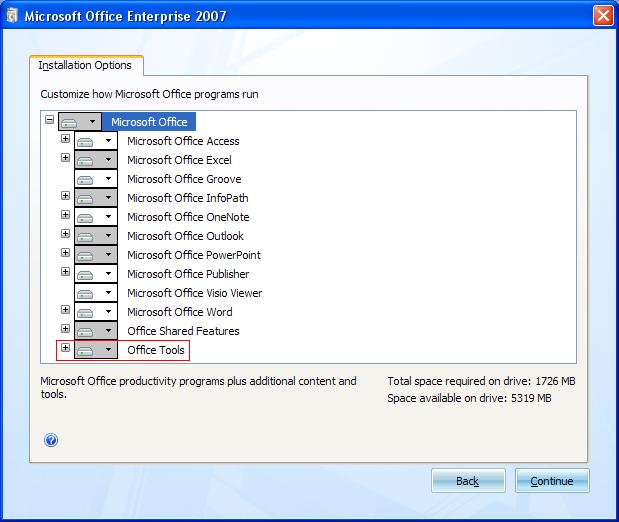
- Under Microsoft Office, expand Office Tools
- Select Microsoft Office Document Imaging and select ‘Run all from My Computer’
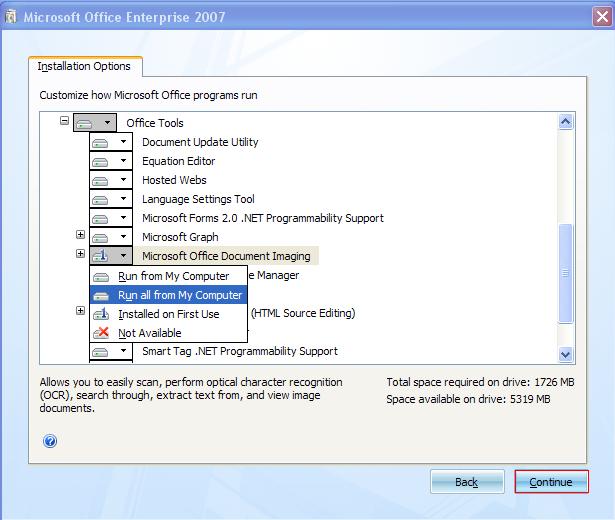
- Click on Continue
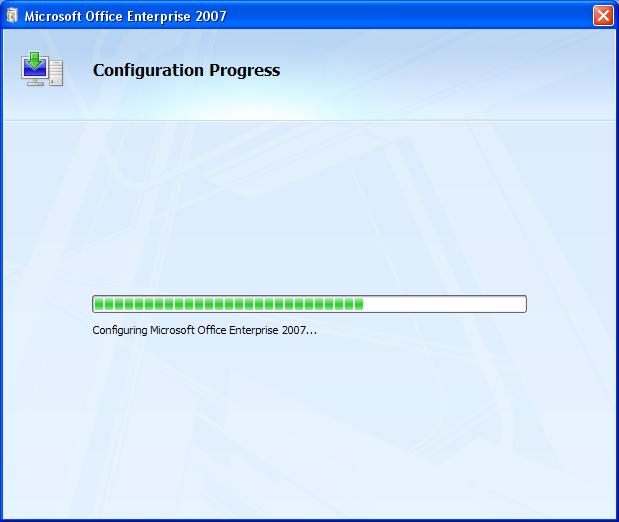
That’s it. Microsoft Office Document Imaging would be installed. Double Clicking on the .MDI file would now open the document in the Microsoft Office Document Imaging.
There’s another way of viewing .MDI files without installing Microsoft Office Document Imaging.
- Open Microsoft Office OneNote 2007. (Start->All Programs->Microsoft Office->Microsoft Office OneNote 2007)
- Drag and drop the file to the OneNote page
- Under the Insert File Options Dialog Box, select ‘Insert the file as printout so that I can add notes to it’
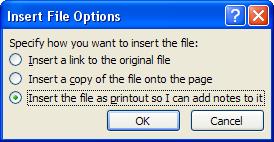
The file would open up in a OneNote page. If you have to deal with MDI files regularly, installing the Microsoft Office Document Imaging using first method is recommended.
For more information about the MDI file format, refer this and this.