How to sync Twitter and MySpace
 MySpace has recently launched the sync service that lets users to sync their MySpace status updates with their Twitter account and vice-versa. As of now this feature is available only to the US users. Non US users, see this. In this article we present you with a step-by-step guide to sync your MySpace updates with your Twitter account and the other way round.
Step 1: Go to the Twitter MySpace Sync page. You can also use this link to land up directly on the sync - settings page. Non US users should see this Tip for syncing their Twitter MySpace accounts.
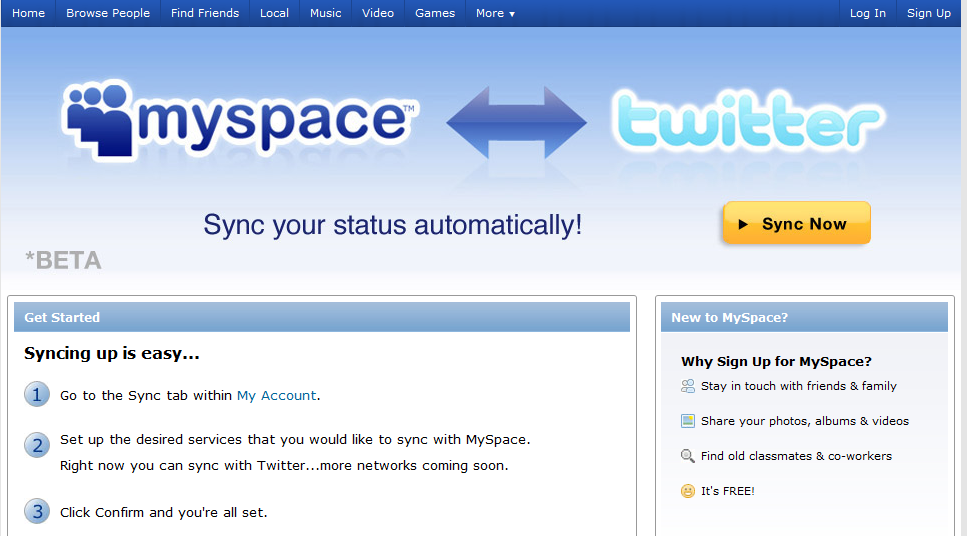
The MySpace Twitter Sync page
Step 2: Here you can see a link that says Get Synced. You need to click the "Get Synced" link in order to start the syncing process as shown below.
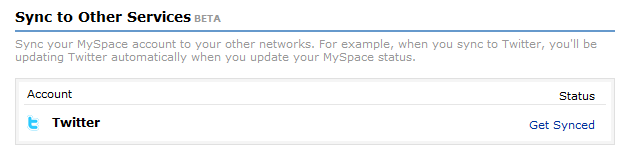
Click on "Get Synced" to start the syncing process
Step 3: Once you click on "Get Synced" link, you will be redirected to your Twitter account's authorization page. In case you are logged in to your twitter account you will see a page that looks like the one shown below. If you are not logged into twitter then you need to log in first after which you will automatically be redirected to your twitter app authorization settings page.
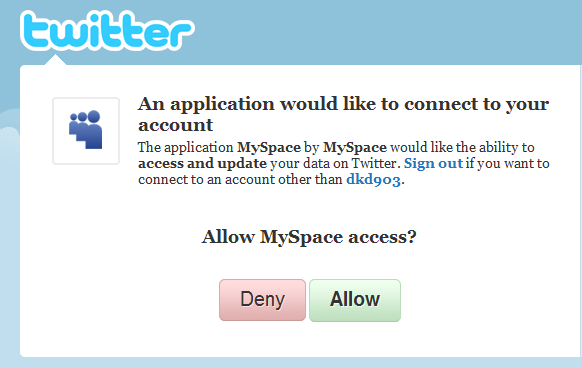
Authorize MySpace by clicking on Allow
Step 4: Now you have to choose whether you want to show your Twitter updates on MySpace or the MySpace updates on Twitter. Accordingly select the check boxes for this. You can also select both the check boxes to enable both Twitter updates on MySpace as well as MySpace wall updates on Twitter. Then click on Confirm. Check this screenshot below.
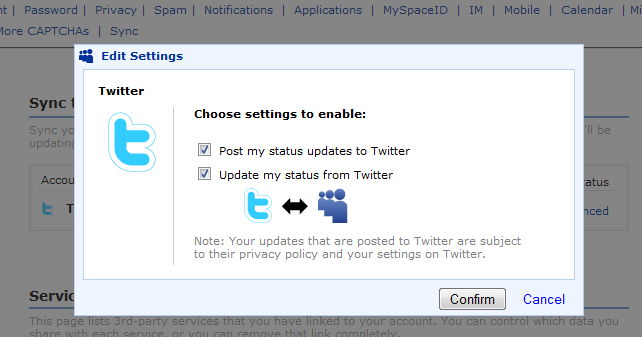
Select the appropriate checkbox
Step 5: Once you have done all the steps as mentioned above, you will see that your twitter account has been successfully synced with MySpace and vice-versa (as you may have chosen).
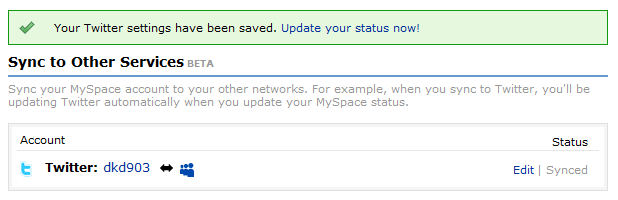
Sync successful!!