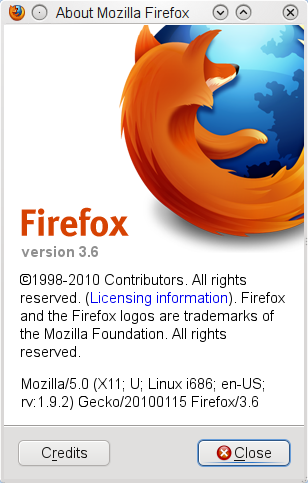
Mozilla released Firefox 3.6 today for Linux, Windows and Mac. It will take some time for Firefox 3.6 to come to the Ubuntu repository. So, in this post we will show you how to install Firefox 3.6 in Ubuntu 9.10. The method we are going to outline will still keep your previous version of Firefox although the new version will be made the default.
To install Firefox 3.6, follow the following steps:
MANUAL INSTALL
1. Download Firefox 3.6.
2. Assuming that it is downloaded in ~/Downloads, open terminal and execute the two commands given below:
sudo tar -C /opt/ -xf ~/Downloads/firefox-3.6.tar.bz2
sudo ln -sf /opt/firefox/firefox /usr/bin/firefox
3. To launch Firefox 3.6, close Firefox if it is running and start it again. Now you should get Firefox 3.6 with your previous settings.
INSTALL FROM DAILY PPA
1. To install from PPA, add the mozilla-daily PPA in the repository list.
sudo add-apt-repository ppa:ubuntu-mozilla-daily/ppa
2. Update the software list using the command
sudo apt-get update
3. Install Firefox 3.6 using the command
sudo apt-get install firefox-3.6
4. After the installation disable the repository you just added.
INSTALL FROM STABLE PPA
1. To install from PPA, add the mozilla-daily PPA in the repository list.
sudo add-apt-repository ppa:mozillateam/firefox-stable
2. Update the software list using the command
sudo apt-get update
3. Install Firefox 3.6 using the command
sudo apt-get install firefox-3.6