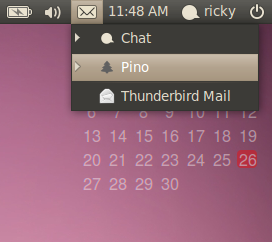
 Earlier, we told you how you can install Thunderbird 3.1 from Ubuntuzilla. I prefer Thunderbird to the default email client, Evolution. However, Thunderbird (any version not just 3.1) it does not come in the Messaging Menu (the little envelop in the panel). Here we will show you a little hack to put Thunderbird in the Messaging Menu.
This method was originally posted by x-shaney-x from Ubuntu Forums. So, here is how you can put Thunderbird 3.1 from Ubuntuzilla in the Ubuntu 10.04 Messaging Menu:
- Open the terminal.
- Open the thunderbird-mozilla-build.desktop in a text editor with the command:
sudo gedit /usr/share/applications/thunderbird-mozilla-build.desktop
- If you are using not using Thunderbird from Ubuntuzilla, use the command below instead of the one above:
sudo gedit /usr/share/applications/thunderbird.desktop
- In the file, remove the content and copy the content shown below. Save and exit.
[Desktop Entry]
Name=Thunderbird
Mail GenericName=Mail Client
Comment=Manage your email and contacts
Exec=thunderbird %u Icon=evolution
Terminal=false
Type=Application Categories=Application;Network;Email;
StartupNotify=true
X-Ayatana-Desktop-Shortcuts=Compose;Contacts
Name[en_GB]=thunderbird.desktop
[Compose Shortcut Group]
Name=Compose New Message
Exec=thunderbird mailto: OnlyShowIn=Messaging Menu
[Contacts Shortcut Group]
Name=Contacts Exec=thunderbird -addressbook
OnlyShowIn=Messaging Menu
- Then execute the command below in the terminal.
sudo gedit /usr/share/indicators/messages/applications/thunderbird
- Add the line shown below, and save and close.
For Thunderbird from Ubuntuzilla:
/usr/share/applications/thunderbird-mozilla-build.desktop
For others:
/usr/share/applications/thunderbird.desktop
- Then logout and login again.
There you have Thunderbird in the Messaging Menu.