When Facebook was launched, you could only deactivate your profile on Facebook but not delete anything, even if you would want to. Deactivating your account would mean that all the data on your Facebook profile would still stay in Facebook’s custody.
However, Facebook has now introduced a new option that lets you totally delete your Facebook account and not just deactivate your Facebook account. So, if you have finally made up your mind to get rid of your Facebook account, then all you need to do is this:
Step 1: Visit one of the following links, which leads to the Page from where you can initiate the Deletion of your Facebook Profile –
https://www.facebook.com/help/contact.php?show_form=delete_account
OR
https://www.facebook.com/help/delete_account
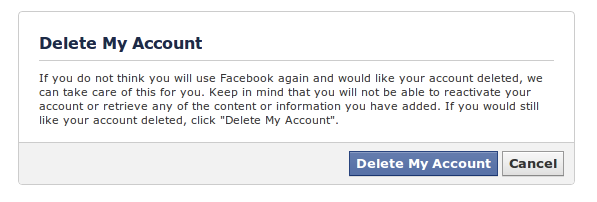
The page looks like something this, shown in the screenshot below:
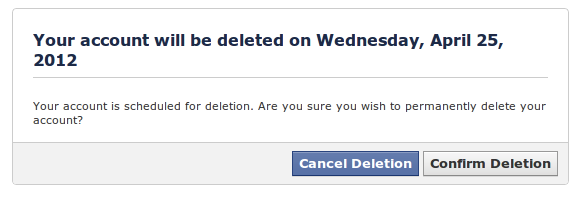
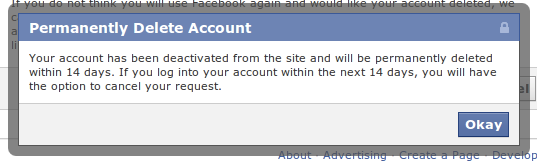
Step 2: You will now be asked to enter your Facebook account password and a couple more information, after which you will get a notification saying that your account has been de-activated and will be deleted after 14 days.
Step 3: However, Facebook provides you a grace period. Within these 14 days if you want to get back to Facebook again, then you simply have to cancel your Facebook account deletion request and you will be back.