How to send Windows Live Messenger to the System Tray on minimizing in Windows 7
The Windows Live Messenger in Windows 7 stays on the taskbar by default even when you minimize it. This might prove to be quite disturbing at times when you are not using the Messenger and it still occupies your taskbar space. Now, closing the live messenger isn’t a solution as it will close the messenger entirely. So, in this article we will tell you how you can send the live messenger to your system tray on minimizing it, in Windows 7.
1. FIrst of all, Close Windows Live Messenger completely (Exit).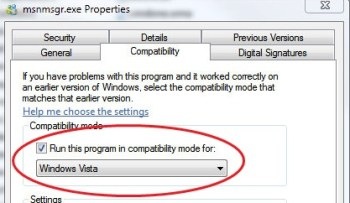
2. Right-click on the file msnmsdgr.exe (located in C:\Program Files\Windows Live\Messenger folder where C: is your Windows 7 install drive) and select Properties.
3. From the dialog box that opens, select the Compatibility tab. Go to the Compatibility mode section and check the Run this program in compatibility mode for checkbox. Select Windows Vista from the OS options Dropdown Menu. Then click on ok.
4. Next time when you click on the minimize button on the Windows Live Messenger, it will go to the system tray instead of the taskbar. Cool, ain’t it?