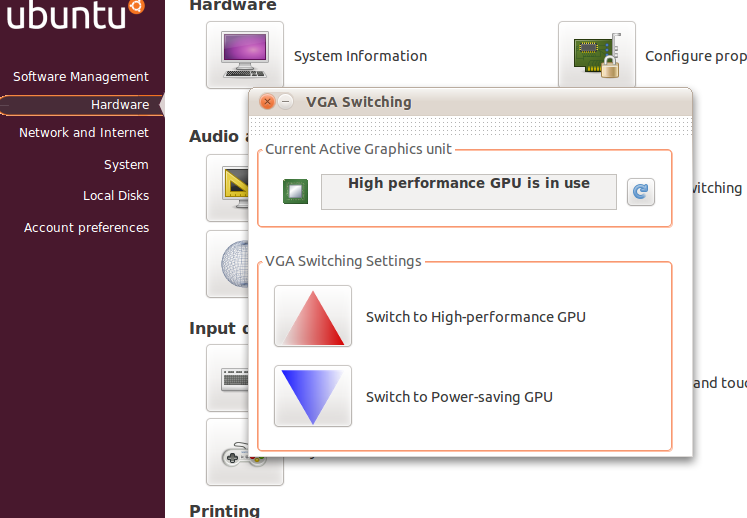
In Windows 7, you can switch between graphics card if you have more than one in your system. (I am not sure if it works in other versions of Windows.) This is specially useful on a laptop where battery life is important.
It took some time for this feature to arrive in Linux, but it is now possible in Linux 2.6.35 through the inclusion of vga_switcheroo. It is nowhere as smooth as that in Windows, because X has to restart on switching, which means you have to login again. Anyway it is better than nothing.
Ubuntu 10.10 Maverick Meerkat will have Linux 2.6.35. So, hot switching GPU using vga_switcheroo works in Maverick. However, it doe not include any GUI tools to do this.
So to easily switch between GPU, you need to install the latest version of Ubuntu Control Center. Ubuntu Control Center is a pretty awesome application. It can do a lot of other things as well. Anyway there is no PPA available for Ubuntu Control Center. So installation can be a bit tricky. Follow these steps:
First of all download and install Font-manager.
For 32-bit:
wget http://font-manager.googlecode.com/files/font-manager_0.5.5-4_i386.deb
sudo dpkg -i font-manager_0.5.5-4_i386.deb
For 64-bit:
wget http://font-manager.googlecode.com/files/font-manager_0.5.5-4_amd64.deb
sudo dpkg -i font-manager_0.5.5-4_amd64.deb
Then, download and install Jstest-gtk
For 32-bit:
wget http://ucc.googlecode.com/files/jstest-gtk_0.1.0-1~getdeb1_i386.deb
sudo dpkg -i jstest-gtk_0.1.0-1~getdeb1_i386.deb
For 64-bit:
wget http://ucc.googlecode.com/files/jstest-gtk_0.1.0-1~getdeb1_amd64.deb
sudo dpkg -i jstest-gtk_0.1.0-1~getdeb1_amd64.deb
Install hardinfo
hardinfo is in the Ubuntu repository. SO install it with:
sudo apt-get install hardinfo
Finally install Ubuntu Control Center
For 32-bit:
wget http://ucc.googlecode.com/files/ucc_051_i386.deb
sudo dpkg -i ucc_051_i386.deb
For 64-bit:
wget http://ucc.googlecode.com/files/ucc_051_amd64.deb
sudo dpkg -i ucc_051_amd64.deb
After you start Ubuntu Control Center, go to Hardware and you will find the VGA switching option.